MUOS User Guide
13 Tháng Mười, 2025 2025-12-01 19:22MUOS User Guide

MUOS User Guide
MuOS, according to Nam Retro, is the most comprehensive custom firmware for the Anbernic RG40XX V / H, RG35XX Plus / H / SP, RG34XX, RG CubeXX and RG28XX models at present. It helps you smoothly play most games on systems like NDS, Dreamcast, N64; it supports ports well (e.g. Stardew Valley), has fast boot time, many fresh and simple-but-beautiful interfaces, good power management, and many “tinker” apps like web browser, music playback, game streaming via Moonlight… And especially, it supports Vietnamese.
Today Nam Retro will guide you on how to use it and the shortcut keys on this MuOS custom firmware.
Note: The manufacturer recommends that when charging the device, you only use a 5W charger — do not use the fast chargers from iPhone or Samsung to avoid damaging the hardware during use. If you do not have a 5W charger, you may purchase one at Nam Retro Shop.
Basic Function Keys
-
Booting the device: To power on the RG40XX H / V, RG35XX Plus / H / SP, RG28XX, press and hold the power button (on the right side or top edge) for about 2–3 seconds; when the green indicator light on top turns on, the device is booting (for RG35XX H the light is on the front face).
-
If the device freezes, press the small Reset button beside the power button to reboot the machine.
-
MENU button location:
-
On RG40XX V, RG35XX Plus (marked “F” or “M”): located on the front of the device
-
On RG40XX H, RG CubeXX (marked “M”): front left
-
On RG34XX: a small round button on the top right (marked “M”)
-
On RG35XX H, RG28XX: a small button (marked “F” or “M”) on top near the USB-C charging port
-
-
START and SELECT may be labeled ST and SE on some models (e.g., RG40XX H, RG CubeXX).
-
Volume control: press the “+” or “–” buttons on the left side.
-
Brightness adjustment: press MENU + “+” or MENU + “–”.
Keys on the Home Screen
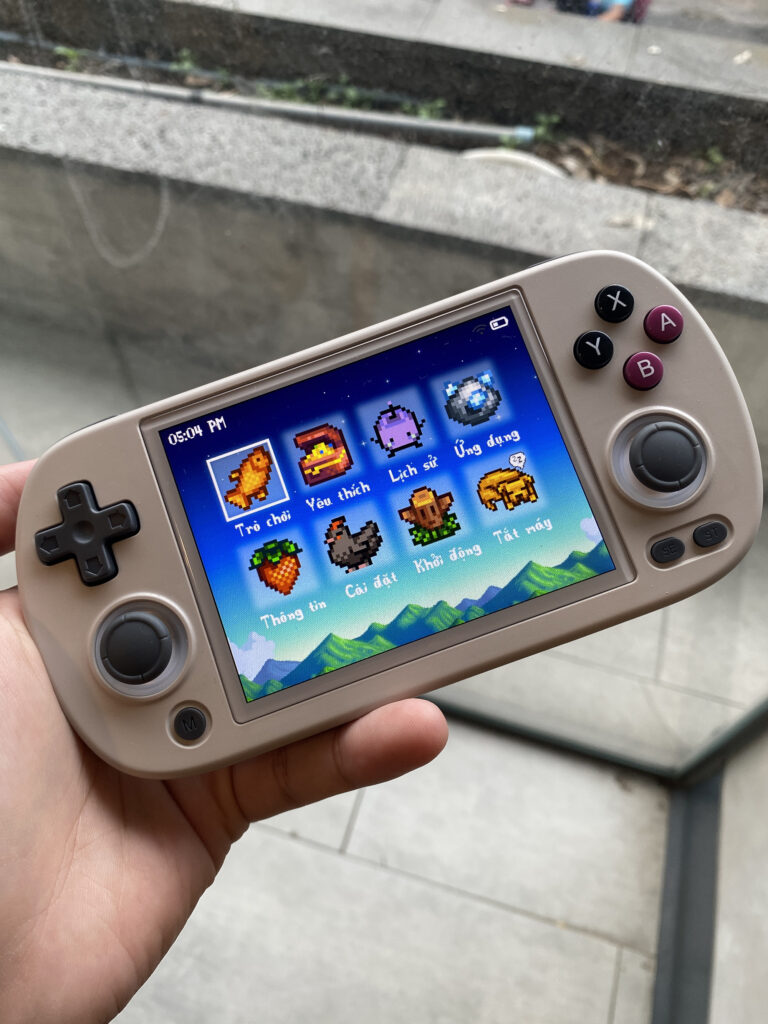
After booting successfully, your system will land on the Home Screen. It has 8 main functions:
-
Explore Contents – Games: lists emulation systems and games
-
Favorites: quickly access games you’ve added to your favorites
-
History: recently played games
-
Apps: includes music, web browser, game streaming, Port master, etc.
-
Info: general information such as RAM, CPU, battery %, temperature, etc.
-
Config: change settings like language, interface, date/time
-
Reboot: restart device
-
Shutdown: power off device
At this screen:
-
A = Select / Enter
-
B = Back
Then you enter the Games section: a list of supported systems appears.
Use the Up / Down direction or L1 / R1 to scroll through systems; press A to choose one (e.g. NDS), then the list of NDS games shows.
Shortcuts in the Game List
Similarly, use Up / Down to scroll game titles, or L1 / R1 to quickly skip through the list.
Once you’ve selected your desired game, press A to launch it.

Nam Retro enables auto-save / auto-load by default (works for emulators under RetroArch). For standalone emulators like PSP or NDS, you must manually save the game. The following shortcuts apply:
-
A = Enter game
-
B = Back
-
Y = Add to Favorites
-
Select = change the emulator core or performance mode.
-
For instance, if an Arcade game doesn’t run well, try switching to another core like MAME 2003 Plus or Final Burn Neo: press Select on the game, then go to “Assign Core → Arcade → choose Final Burn Neo,” and press A to apply (or X to apply for the entire folder).
-
Shortcuts While Playing a Game
For systems using RetroArch (e.g. GBA, NES, SNES, PS1…):
-
MENU + X = access Quick Menu
-
MENU + START = exit game
-
MENU + R1 = fast-forward
-
MENU + L1 = slow down
-
MENU + Y = show FPS
-
MENU + Power button = take a screenshot
-
MENU + Left / Right direction = switch save-load slot
-
MENU + R2 = Save State (save to current slot)
-
MENU + L2 = Load State (load from current slot)
-
To exit game: press MENU + START
For ports / ports master games (e.g. Stardew Valley, Ninja Turtles TMNT), they may take 20–30 seconds to load — please be patient. To exit a port game, use START + SELECT or MENU + SELECT. If the game won’t exit, try exiting from within the game’s internal menu (since port games are essentially PC games ported to retro hardware, some have their own exit options).
For PSP, to open the Quick Menu in PPSSPP: press MENU, then B = Enter, A = Back, and use the direction keys to select options.
For NDS (using the Drastic emulator):
-
L2 = enable touch pen
-
R2 = swap the two screens
-
MENU + SELECT = Quick Menu (save, load, reset)
-
MENU + START = open settings
-
MENU + R1 = fast-forward
-
MENU + R2 = Save State
-
MENU + L2 = Load State
-
To exit NDS, press MENU + L1.
-
Note: large NDS games (e.g. Pokémon Black & White, Black & White 2) over 100 MB may take a while—around 20–30 seconds—to launch.
For N64 (using Mupen standalone):
-
MENU + R1 = fast-forward
-
MENU + R2 = Save State
-
MENU + L2 = Load State
-
MENU + D-Pad Right = switch save slot
-
MENU + A = Reset game
-
MENU + START = Exit game
How to Download and Copy More Games
To download and copy additional games onto Anbernic RG**XX running MuOS, refer to this article.
Conclusion
Above is the usage guide for various Anbernic models (RG40XX V / H, RG35XX Plus / H / SP, RG34XX, RG CubeXX, RG28XX) running the MuOS custom firmware. Have fun gaming!
